Buttons and touch
Watch Controls
Every supported watch can use physical buttons. Touch models also provide swipe and tap shortcuts.
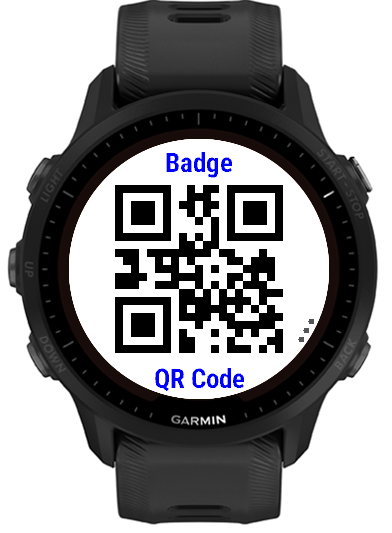
On a code display
UP / DOWN
Move among included formats that are valid and readable for the current content.
↑ / ↓ swipe
Touch equivalent of UP/DOWN: cycles through compatible included formats.
← / → swipe
Moves through included formats directly. If a format cannot represent the content, the display explains why.
START
Moves to the next compatible format, like DOWN.
Long press BACK
Opens Code Options for label, content, group, formats, Favorite status and deletion. Press and hold the bottom right button for about half a second. Three dots beside the button mark it. On five-button watches holding UP works too.
Touch the ⋮ three dots
On touch watches, touch and hold a finger on the three dots beside the button to open Code Options, just like a long press of BACK.
TAP
Advances through the compatible formats on touch-capable watches.
BACK
Returns from the code display to its item list.
The text page
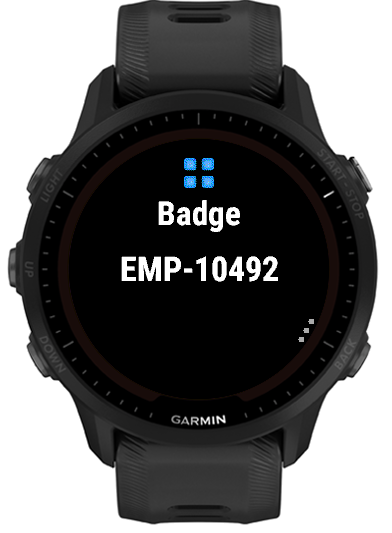
Opening a code from a list first shows its label and content as plain text. UP/DOWN or START move on to the code itself; the text page comes round again before the code's Default format. Turn it off for a code with the Text row of its Formats menu.
It also works the other way round: for information you only ever read yourself, such as a passport or ID number, a membership number, a Wi-Fi password or a locker code, turn every barcode format off and keep only Text. The item then opens straight to its text page, in the largest font that fits, and shows the text icon in your lists. If you keep sensitive text this way, turn on PIN Lock; it deters casual access, though it does not encrypt what is stored.
Holding BACK in lists
On the Home Menu, hold BACK (the bottom right button, beside the three dots) to open Settings. In an item list, hold BACK on a code to open that code's options without opening the code. A short press of BACK still goes back.
On the Home Menu
BACK behaves differently here than on other screens, so a single accidental press can't close the app: if the list is scrolled down, BACK first scrolls back to the top. Pressing BACK again once already at the top exits CodesWallet, the same as on any other watch app.
Entering a PIN Lock
The same four-digit entry screen is used both to unlock CodesWallet at launch and to change the PIN in Settings.
UP / DOWN
Changes the focused digit. Touch watches can also swipe anywhere on the screen.
SELECT / TAP
Confirms the focused digit and moves to the next one. On the fourth digit, this checks the full PIN.
An incorrect PIN briefly boxes all four digits in red and shakes them, then resets to the first digit for another attempt.
Why do horizontal and vertical swipes differ?
UP/DOWN is the safest path at a scanner because it skips representations that cannot work with the current payload. LEFT/RIGHT exposes the included set more literally, which is useful when reviewing why a configured format is unavailable.
Non-touch watches
Nothing essential depends on gestures. Use UP/DOWN or START to change the displayed format, hold BACK for options and press BACK to return.