
Find codes quickly
Organize Your Wallet
Choose a flat or grouped layout, use Favorites, and order codes alphabetically or by recent use.
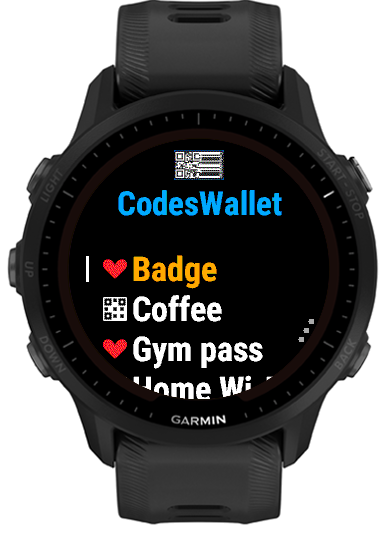
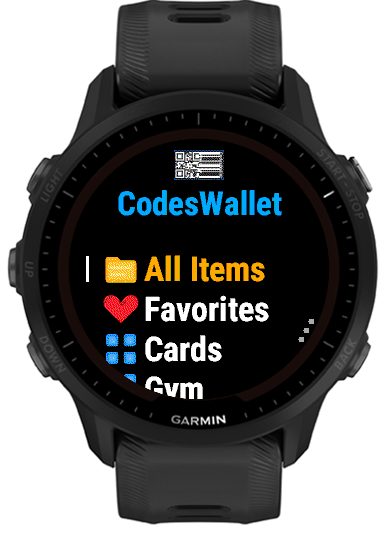
Home sections
 All Items
- Every configured wallet item in one list.
 Favorites
- A focused list for the codes you use most often.
- Groups
- Each group currently in use appears directly on the home screen, so there is no extra folder level.
 Add New
- Uses the next available item slot to create a code.
 Settings
- Configure PIN Lock, list alignment, organization, sorting and more - see Settings & Privacy.
Choose the layout you prefer. In Settings, tap the row showing Flat List or Grouped List to switch layouts. Flat List places every code directly on Home; Grouped List uses All Items plus Favorites and group rows when present. New remains available in either layout, and holding the bottom right button opens Settings from either.
Icons help identify each row. Every code shows how it appears when you open it: a QR icon for a two-dimensional format, a barcode icon for a linear one, or a text icon when it shows only its text. In Flat List and All Items a Favorite shows a heart instead. Every group row on Home uses the same group icon.
 QR and other 2D codes
 Linear barcodes
 Text onlyFavorite
Choose the order
Tap the sort row to cycle through all three choices. The selected order applies consistently to the flat Home list, All Items, Favorites and every group.
 Sort by A–Z
- Shows labels in ascending, case-insensitive alphabetical order.
 Sort Z–A
- Reverses the alphabetical order.
 Sort by Usage
- Puts the most recently viewed code first. Codes with the same usage time, including codes never opened, remain in A–Z order.
Edit an existing item
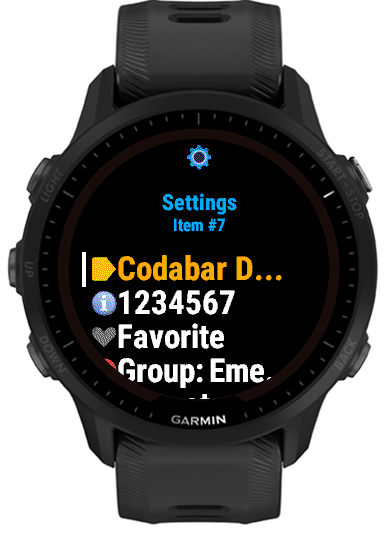
The Code Options menu lets you update the label, content, group, included formats and Favorite status. It also contains the delete action.
- Use short, distinct labels that are readable at a glance.
- Keep group names consistent; an existing group can be selected again.
- Reserve Favorites for the small set you need immediately.
- Want it simple? In Settings, tap the Flat List/Grouped List row until Flat List is shown.
- Delete unused items to release one of the 32 available slots.
Built-in groups
Choosing a group offers these 14 built-in names first; you can also type your own. Every group, built-in or your own, uses the same group icon. On a watch set to German the built-in names appear in German, and a code keeps its group when you change the watch language.
Banking
Clients
Contacts
Emergency
Events
Family
Friends
Gym
Passwords
Shopping
Social Media
WiFi
WWW
Misc