
Set up
Getting Started
Create a useful item in three steps, then test it against the scanner you plan to use.
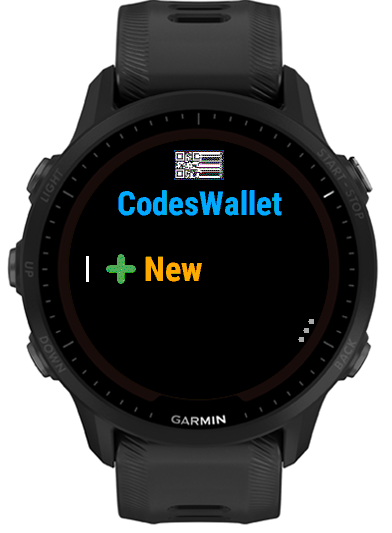
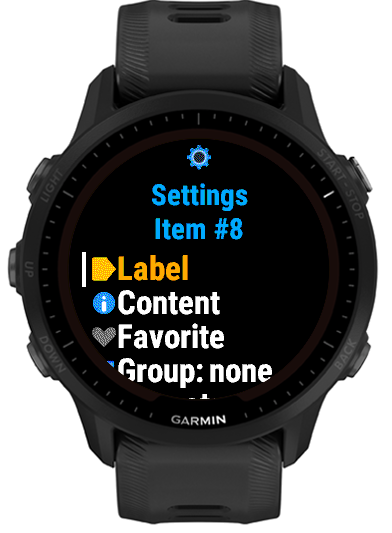
Add the item
Select Add New, give the item a short label, then enter its exact content.
Organize it
Optionally choose a group and mark frequently used items as Favorites.
Choose formats
Enable the formats the scanner accepts and choose the most useful one as the default.
Garmin Connect Instant Keyboard
On a compatible watch, selecting a text field can open Instant Keyboard in the Garmin Connect app so you can type with your phone. Keep the watch paired, leave Garmin Connect open on the phone and make sure Instant Keyboard is enabled in Garmin Connect. The completed text is sent back to the field on your watch.
If PIN Lock is turned on
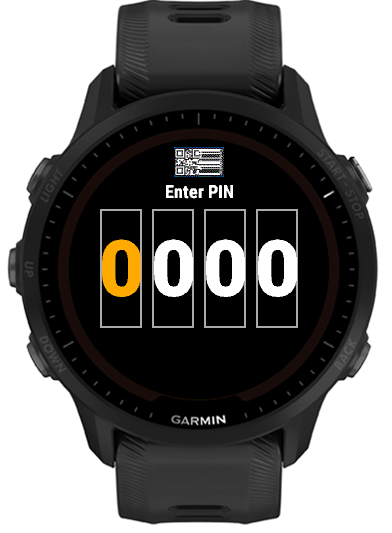
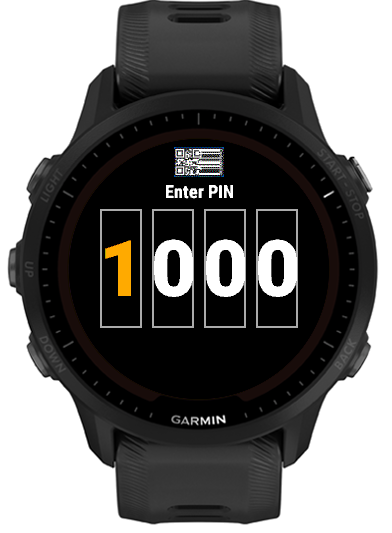
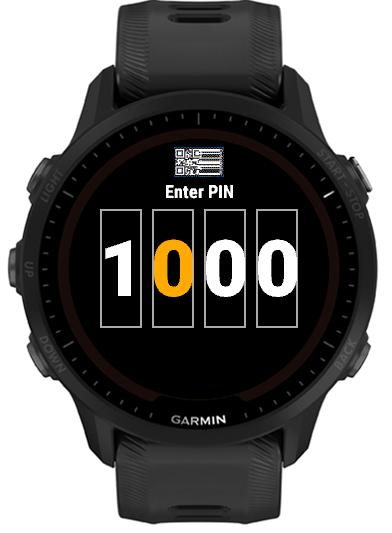
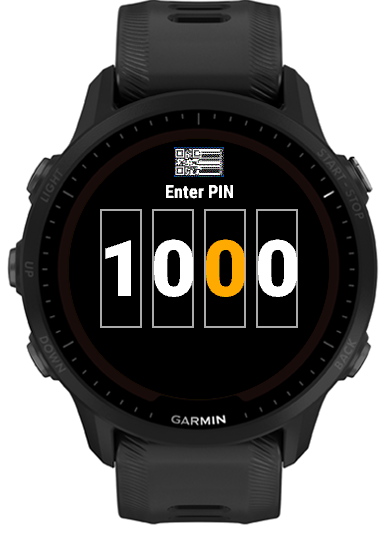
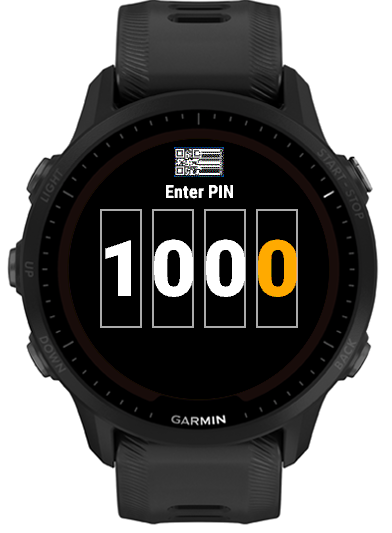
When PIN Lock is set to anything other than 0000, this screen appears before Home every time you open CodesWallet. In this example the chosen PIN is 1000 - entering it correctly unlocks the app and goes straight to the Home screen.
UP/DOWN (or swipe up/down on touch models) changes the highlighted digit; SELECT (or tap the screen) confirms it and moves to the next digit.
What should the content contain?
- Membership or loyalty card
- Enter the digits or text encoded in the physical card's barcode.
- Website or check-in link
- Enter the full address, including
https://. - Ticket or pass
- Enter the exact supplied payload. Long content may not fit every code format on a watch screen.
- Contact or Wi-Fi information
- Use the exact structured text expected by the receiving scanner.
Test before you depend on it
Scanners differ. Confirm the saved code works at the actual checkout, gate or reader while the original card or ticket is still available. If one format is too dense or invalid for the content, CodesWallet identifies it and lets you try another included format.